Looking for a universal notebook docking station that works across brands and operating systems? This guide highlights five top options that support USB-C and Thunderbolt laptops, offer multiple displays, and simplify desk clutter. Ideal buyers include remote workers, students, IT admins, and anyone seeking a single-cable docking solution for a multi-device setup. The table below summarizes each pick to help you compare at a glance.
| Product | Key Features | Best For |
|---|---|---|
| HP USB-C Dock G5-11-in-1 | Universal compatibility, single-cable connection, up to three displays | Users needing broad compatibility and a clean desk |
| HP USB-C/A Universal Dock G2 | 6 ports, dual displays, 100 W power, HDMI + DisplayPort | Power users with multiple peripherals |
| Plugable UD-3900 | 2x HDMI, Gigabit Ethernet, 6 USB ports, driver-based setup | Windows and Mac users with dual monitors |
| Anker Dual 1080p HDMI Dock | 4K-capable, USB-C PD-IN, dual HDMI, Ethernet | Mac and Windows users needing high-quality dual displays |
| Dell Pro Dock WD25 | 100 W power delivery, DisplayPort, HDMI, modern manageability | Business environments with IT management |
HP USB-C Dock G5-11-in-1 Adapter
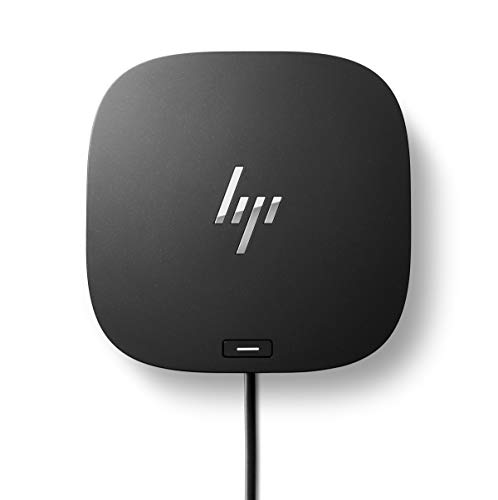
The HP USB-C Dock G5-11-in-1 is designed for universal compatibility with USB-C and Thunderbolt laptops, making it a flexible choice for mixed-brand environments. It supports charging, networking, and data transfers through a single connection, helping keep desktops tidy. Best for professionals who need a single-dock solution that works with both HP and non-HP devices.
Who this is best for: remote workers or IT admins who deploy a variety of laptops and want a single docking station that minimizes peripheral clutter. Why chosen: its broad compatibility and multi-function feature set simplify shared desk setups. Limitation: users should verify display configurations for their specific monitor lineup, as supported resolutions can vary by host hardware.
HP USB-C/A Universal Dock G2

The HP Dock G2 supports both USB-C and USB-A connections, with 100 W power delivery and multiple display options. It enables quick docking with a single USB-C or USB-A cable and handles up to two displays via HDMI and DisplayPort. Best for users who require a robust, enterprise-grade dock across devices and often multitask with several external displays.
Who this is best for: professionals who switch between different laptop types (USB-C and USB-A) and need reliable charging plus dual-display support. Why chosen: strong port selection with integrated power delivery. Limitation: some setups may require firmware or driver updates for full dual-display compatibility on certain systems.
Plugable UD-3900 Universal Dock

The Plugable UD-3900 offers flexible expandability with a hybrid USB 3.0 and USB-C cable, 2x HDMI outputs, Gigabit Ethernet, audio jacks, and multiple USB ports. It supports dual monitors with driver-based limitations and works across Windows, macOS, and ChromeOS with appropriate drivers. Best for IT-managed environments that require cross-platform compatibility and a mix of display setups.
Who this is best for: teams standardizing workstations across mixed devices. Why chosen: broad operating system support and a dual-monitor configuration option. Limitation: macOS requires a DisplayLink driver for external displays, and 4K support is not included in some configurations.
Anker Dual 1080p HDMI Dock

The Anker 8-in-1 USB-C Hub expands a single USB-C port into multiple ports, including dual HDMI outputs capable of 4K on one display at 60 Hz and two 4K displays at 30 Hz on compatible devices. It also includes a USB-C PD port, Ethernet, and card readers. Best for users who need a compact, feature-rich dock with strong display support for modern laptops.
Who this is best for: creators and professionals who want high-quality dual-monitor output from a single USB-C connection. Why chosen: reliable performance with 4K compatibility and a broad port mix. Limitation: macOS can mirror displays on both outputs, limiting extended desktop scenarios on some setups.
Dell Pro Dock WD25

The Dell Pro Dock WD25 offers powerful compatibility and up to 100 W power delivery, along with DisplayPort and HDMI outputs. It is designed for modern workspaces and IT-friendly management, supporting efficient connectivity for Dell and non-Dell laptops alike. Best for corporate environments seeking streamlined IT administration and reliable performance.
Who this is best for: IT departments and workstation-heavy setups. Why chosen: strong power delivery and enterprise-style manageability. Limitation: users should verify display compatibility with external monitors in their office configurations to ensure optimal setups.
Buying Guide
What to consider when choosing a universal notebook docking station:
- Display support: Do you need one, two, or three displays? Check each dock’s maximum resolutions and whether it supports DisplayPort, HDMI, or both.
- Power delivery: If you want to charge your laptop through the dock, confirm the wattage and compatibility with your laptop’s charging requirements.
- Port variety: Assess the mix of USB-C, USB-A, Ethernet, audio jacks, and SD/microSD readers to match your peripherals.
- Host compatibility: Ensure the dock works with your laptop’s brand and operating system; some require drivers or DisplayLink software for full functionality.
- One-cable setup: If you value a clutter-free desk, prioritize docks advertised as single-cable or simple-dock solutions.
- Desk deployment: Consider force-free arrangements, cable routing, and whether a vertical or horizontal dock better fits your workspace.
FAQs
- What is a universal docking station? A docking station that works across multiple laptop brands and operating systems, typically via USB-C or USB-A connections.
- Do all docks provide power delivery? Not all do. If you need charging from the dock, verify the wattage and compatibility with your laptop’s charger requirements.
- Can docking stations support 4K displays? Some models do; check the maximum resolution per HDMI/DisplayPort output for each dock.
- Is driver software always required? Some docks require DisplayLink or other drivers for external displays, while others are plug-and-play on Windows or ChromeOS.
- Are these docks compatible with both PCs and Macs? Many listed options support Windows, macOS, and sometimes ChromeOS, but driver needs can vary by platform.
- How should I choose between USB-C and USB-A docks? USB-C docks generally offer newer features and higher power delivery; USB-A docks are more widely compatible with older devices.