Yes—these large work monitors are built for serious productivity. This guide highlights five top picks that maximize screen real estate, improve multitasking, and reduce eye strain. Best for executives and creatives who need expansive displays, or teams collaborating across multiple projects. The selections cover ultrawide and large-screen options, with clear buying considerations and practical comparisons.
| Product | Size / Type | Best For | Key Benefit |
|---|---|---|---|
| SAMSUNG 34″ ViewFinity S50GC | 34″ Ultra-Wide, 21:9 | Power multitaskers | Ultra WQHD, HDR10, PIP/PBP |
| Dell 34 Plus S3425DW | 34″ Curved, 21:9 | Creative professionals | Upscaled color depth and 120 Hz option |
| Samsung 49” LS49C954U | 49″ UltraWide, 32:9 | Global teams, data dashboards | Dual QHD, docking hub, 120 Hz |
| LG 34SR60QC-W | 34″ Curved, 21:9 | Home office and streaming | Smart monitor with webOS |
| LG 32MR50C-B | 32″ Curved, FHD | Budget-friendly large screen | 100 Hz, easy viewing |
SAMSUNG 34″ ViewFinity S50GC Series Ultra-WQHD Monitor

The Samsung ViewFinity S50GC is an ultrawide 34-inch display designed for heavy multitasking. Its 21:9 Ultra WQHD panel offers expansive onscreen real estate for spreadsheets, design canvases, and multiple open apps at once. HDR10 support provides richer color depth, while a 100 Hz refresh rate and 5 ms response contribute to smoother motion in dynamic tasks. This monitor is best for professionals who need a single-screen workspace to replace multiple displays and desire precise color reproduction.
Best for: Analysts, designers, and developers who run many apps side-by-side and value broad horizontal space. The ambient light sensor and Eye Saver Mode help reduce eye strain over long sessions.
Why selected: It combines a wide aspect ratio with practical eye care features and HDR color depth, reducing the need to switch between windows frequently.
Limitations: Some users may prefer a higher peak brightness for very bright rooms; this model focuses on color depth and multitasking ergonomics rather than maximum brightness.
LG 32MR50C-B Curved Monitor 32-Inch FHD 100Hz
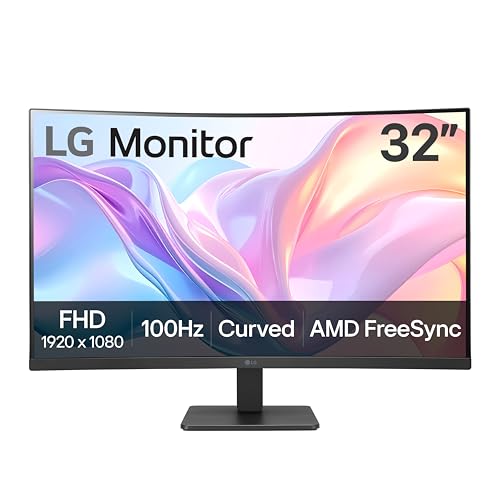
The LG 32MR50C-B is a 32-inch curved monitor with Full HD resolution and a 100 Hz refresh rate. The curved design enhances immersion and creates a comfortable viewing experience for long work sessions. It’s a reliable choice for those who want a larger display without stepping up to 4K or ultrawide resolutions. The 32-inch size sits comfortably on most desks while still offering ample room for multitasking.
Best for: Budget-conscious buyers who still want a sizable, immersive screen for everyday productivity and light design work.
Why selected: It offers a balance of size, refresh rate, and price, making it a practical option for large-screen workflows without overreaching on bandwidth requirements.
Limitations: Full HD resolution may not satisfy users who need ultra-sharp text and precise color grading for design tasks.
Samsung 49” LS49C954UANXZA Ultrawide Curved Monitor

The Samsung 49” LS49C954UANXZA delivers a 32:9 dual QHD experience in a single curved screen. Its ultrawide format is ideal for dashboards, data-heavy workflows, and split-screen productivity across multiple apps. The monitor includes USB-C and multiple input options to consolidate a workspace. A 120 Hz refresh rate supports smoother scrolling and motion, which benefits both productivity tasks and casual media consumption.
Best for: Teams and individuals who need panoramic visibility for dashboards, ETL processes, or large-scale spreadsheets.
Why selected: Its size and connectivity reduce the need for multiple displays while maintaining high data density on one panel.
Limitations: The expansive width requires ample desk space and careful cable management to avoid clutter.
Dell 34 Plus USB-C Curved Monitor – S3425DW

The Dell S3425DW is a 34-inch curved monitor with a 21:9 aspect ratio, designed to maximize desktop real estate for multitasking. It features a 3440×1440 resolution with improved color depth and a 120 Hz capable option, which can deliver smooth visuals for both work and light media tasks. The non-glare VA panel supports strong contrast and a wide viewing angle, making it a solid choice for busy work environments.
Best for: Professionals who need a wide, cohesive workspace and enjoy high-resolution content with responsive performance.
Why selected: It provides a strong balance of screen real estate, color performance, and connectivity, enabling smooth transitions between apps and documents.
Limitations: Some users prefer a higher pixel density for tiny UI elements at close viewing distances; 3440×1440 is adequate but not as sharp as 4K on a similar size.
LG 34SR60QC-W 34-Inch QHD Curved Smart Monitor

The LG 34SR60QC-W pairs a 34-inch curved screen with QHD resolution and built-in smart TV features via webOS. This model is tailored for multitasking and entertainment, offering streaming apps and screen sharing while supporting 100 Hz refresh rates for smoother interactions. The integrated speakers add convenience in environments where external audio setups aren’t ideal.
Best for: Home offices and creative workstations that value streaming capabilities and a single-screen workflow.
Why selected: It merges work and leisure in one device, reducing the need for separate streaming devices and enhancing on-desk efficiency.
Limitations: The built-in speakers may not satisfy demanding audio workflows; external speakers could still be preferable for high-quality sound.
Buying Guide: Large Work Monitors
- Screen size and aspect ratio: For multitasking, ultrawide 34″ or 49″ monitors deliver expansive horizontal space. A 21:9 ratio is common for these large screens and helps keep multiple windows visible at once.
- Higher resolutions (3440×1440 or 5120×1440 equivalents) provide crisper text and clearer UI elements. If you work with detailed graphics or CAD, consider higher density options.
- 100 Hz to 120 Hz improves scrolling and motion in dashboards and video usage. Lower response times help reduce perceived blur during rapid on-screen changes.
- HDR-capable panels with wide color coverage benefit design, video editing, and color-sensitive tasks. Look for HDR10 support and color space specs like sRGB and DCI-P3.
- USB-C and multiple inputs (HDMI, DisplayPort) simplify desk setups, especially when using laptops as the primary source. Built-in docking or power delivery can reduce cable clutter.
- Large monitors require sturdy stands with adjustable height, tilt, and swivel. Check VESA compatibility if you plan to mount the display.
- Blue light reduction, flicker-free design, and ambient light sensors help reduce fatigue during long sessions.
- A wider ultrawide fits on larger desks but demands enough depth and ripple-free space for comfortable viewing angles.
How to choose between ultrawide and single large displays
- Ultrawide (21:9) monitors excel at side-by-side multitasking with fewer bezels interrupting the workspace.
- Large single monitors (such as 49″ or 38″+ displays) create immersive work environments and can reduce the need for multiple screens, though they demand more desk space.
- Consider your workflow: dashboards and data-heavy work benefit from ultrawide layouts, while creative tasks may benefit from higher resolutions and color accuracy on larger panels.
Installation and maintenance tips
- Place the monitor at arm’s length and adjust brightness to match ambient lighting for comfort.
- Use DisplayPort or USB-C for reliable connections and enable adaptive sync if your workflow includes video or gaming elements.
- Calibrate color if working with design or photography; small color adjustments can improve accuracy across software tools.
FAQ
- What size is best for a work desk? A 32″ to 34″ ultrawide is a common sweet spot for many desks, offering ample workspace without overwhelming the room.
- Do I need a 4K monitor for multitasking? Not necessarily. Ultrawide 3440×1440 displays provide extensive working space with sharp UI elements, while 4K options offer higher pixel density for text clarity on larger screens.
- Is curved better for productivity? Curved screens can reduce eye strain by maintaining consistent focal distance and enhancing immersion, especially on ultrawide models.
- Can I use USB-C to power my laptop? Many large monitors provide USB-C with power delivery, which can simplify desk setup by charging the laptop while transmitting video and data.
- What is PBP and PIP? Picture-by-Picture and Picture-in-Picture allow you to view content from two sources on one screen, enhancing multitasking on ultrawide monitors.
- Are speakers built-in? Some models include built-in speakers; for high-fidelity audio, external speakers or a soundbar are usually preferable.