Finding the right HDMI adapter to run two monitors from a single computer can boost productivity, expand workspace, and simplify cable setups. This guide highlights five top options that support dual displays, with a mix of USB-A and USB-C interfaces, 4K compatibility, and varying operating system support. Each option is evaluated for reliability, ease of use, and where they are best suited for home offices, students, or professionals. The selections below are designed to help you compare features quickly and choose a solution that fits your laptop, tablet, or desktop configuration.
| Product | Brand | Key Benefit |
|---|---|---|
| StarTech USB 3.0 to Dual HDMI Adapter | StarTech | USB-A dual HDMI for Windows; 4K at 30Hz; requires Windows drivers |
| OREI SplitExtend HDMI Splitter | OREI | Extends to two HDMI displays; works across Windows and Mac with caveats |
| Selore&S-Global USB C to Dual HDMI Adapter | Selore&S-Global | USB-C dual HDMI with 4K60; MST support on Windows; power delivery |
| Acer USB C to Dual HDMI Adapter | Acer | 2x HDMI 4K at 60Hz; PD charging; comprehensive USB-C hub |
| WAVLINK HDMI Splitter | WAVLINK | Dual HDMI from USB-C/USB-A; 4K/1080p support; broad OS compatibility |
StarTech USB 3.0 To Dual HDMI Adapter

StarTech’s USB to dual HDMI adapter extends a single PC’s display area by adding two HDMI monitors. It is compatible with Windows X86/X64/ARM platforms and supports 4K resolutions up to 3840×2160 at 30Hz. The driver-based approach requires administrator rights for installation, which can affect deployment in managed environments. This solution is attractive for Windows-based workstations needing a straightforward external display upgrade without opening the computer.
OREI SplitExtend HDMI Splitter

OREI’s SplitExtend provides an extended display setup by splitting one HDMI signal into two outputs, enabling three separate screens when used with a laptop screen. It supports Windows and Mac OS with limitations noted for iOS and Linux environments. SiliconMotion driver installation may be required for full functionality, and it is best for productivity tasks that benefit from additional screen real estate rather than gaming or graphics-intensive work. It is not designed to bypass HDCP content restrictions.
Selore&S-Global USB C To Dual HDMI Adapter 4K

This dual HDMI USB-C hub aims to deliver 4K@60Hz on both displays, supported by MST in Windows and mirrored output on macOS. It also includes 100W PD charging, a USB-C data port, and standard USB-A ports. The device works best with USB-C ports that support video output (DP Alt Mode). Mac users should expect mirror mode rather than independent extended displays, while Windows users can typically enable MST for dual extended displays. It’s a robust option for MacBook Pro/ Air users and select Windows laptops with strong DP Alt Mode support.
Acer USB C To Dual HDMI Adapter
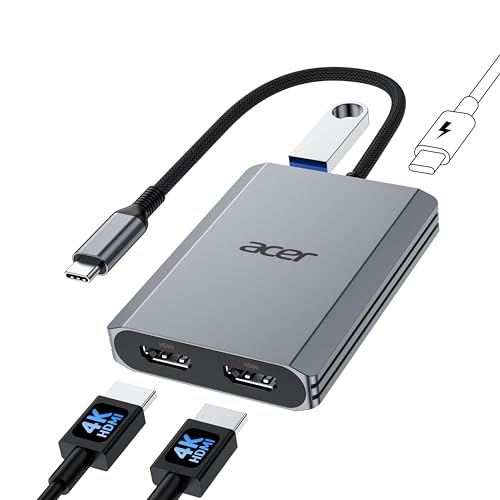
Acer’s dual HDMI USB-C adapter offers a 4K@60Hz experience on both displays with a single USB-C interface, alongside USB-A 3.0 data ports and 100W charging. It shares a multi-port approach with a note about ensuring your device’s USB-C port supports video output. The device is suitable for users needing a compact, integrated hub that blends display output with data and charging capabilities, particularly on Acer, Dell, or other Windows laptops with compatible USB-C ports.
WAVLINK HDMI Splitter

WAVLINK offers a versatile dual HDMI splitter option that works with USB-A or USB-C connections to deliver two displays from a single source. It supports resolutions up to 4K at 30Hz and up to 1080p at higher refresh rates, with typical compatibility across Windows, Mac OS, and Chrome OS, depending on driver support. This solution is useful for users who want a straightforward, plug-and-play approach, while acknowledging possible driver requirements for certain systems.
Buying Guide: Key Purchase Considerations
- Interface compatibility: Choose USB-C for newer laptops that support DP Alt mode or MST, or USB-A when using older machines. Ensure the port type matches your device to avoid adapter incompatibility.
- Display capabilities: Check maximum resolutions and refresh rates per display. Dual 4K outputs are common, but some adapters may limit one or both outputs to 30Hz at 4K.
- Driver and software requirements: Some adapters require driver installation or software configuration. This can affect deployment in managed devices or constrained work environments.
- Operating system support: Windows typically offers the broadest compatibility with MST and extended displays. MacOS often supports mirror mode on many USB-C adapters; Windows MST support enables true extended displays.
- Power delivery: USB-C hubs with Power Delivery (PD) can charge laptops while operating dual monitors. Confirm charger compatibility and wattage needs for your device.
- Use case and performance: For professional tasks like coding or document work, extended desktops are beneficial. For media consumption, mirror mode may suffice. Gaming or graphics-intensive workflows may be limited by bandwidth and driver support.
- Hardware limits: Some devices restrict external displays due to GPU or port bandwidth. Verify device specifications and ensure your motherboard/graphics card supports multiple external displays simultaneously.
- Alignment with content protection: If your use case involves streaming HDCP-protected content, ensure the adapter supports HDCP and that your source and displays comply with licensing requirements.