Answering the question most buyers ask: which HDD recovery tool is best for accessing old drives, cloning data, or recovering files? This guide highlights five top USB-to-SATA/IDE adapters and docks that streamline data transfer, disk imaging, and recovery tasks. Ideal for IT technicians, small-business backups, or anyone needing reliable external access to internal hard drives. The table below compares each option at a glance to help you choose quickly.
| Product | Best For | Key Benefit |
|---|---|---|
| VoroDcip Hard Drive Reader USB 3.0 & Type C to SATA IDE Adapter | Users needing USB-C compatibility and broad drive support | Supports 2.5″/3.5″ SATA HDD/SSD, IDE drives, USB-C/USB 3.0 |
| Unitek USB 3.0 to IDE and SATA Converter External | One-device solution with dual-drive capability | Two-drive support (one IDE + one SATA), reliable 6 Gbps via SATA III |
| SABRENT USB 3.0 to SATA External Docking Station | Easy plug-and-play docking for quick access | Supports most 2.5″ and 3.5″ drives, UASP |
| YINNCEEN USB 3.0 to SATA IDE Hard Drive Reader | Versatile kit for backups and data transfer | USB 3.0 with up to 5 Gbps, supports 2.5″/3.5″ IDE/SATA |
| FIDECO USB 3.0 to SATA or IDE Adapter | High-capacity and multi-drive scenarios | Supports up to 22 TB, USB 3.0 up to 5 Gbps |
Best Overall USB-C Or USB-A HDD Recovery Adapter

The VoroDcip hard drive reader supports 2.5″/3.5″ SATA HDD/SSD and IDE drives, with USB 3.0 and USB-C compatibility. It is designed for file retrieval, backups, and data recovery across multiple drive types. This is best for users requiring broad compatibility with both USB-C and USB-A hosts who frequently transfer or clone data from older IDE devices to modern SATA drives. The included power option enhances stability for larger drives. Caution: verify power requirements for 3.5″ IDE drives before use, as some setups may need a dedicated power supply.
Best Dual-Drive External Dock for Quick Access
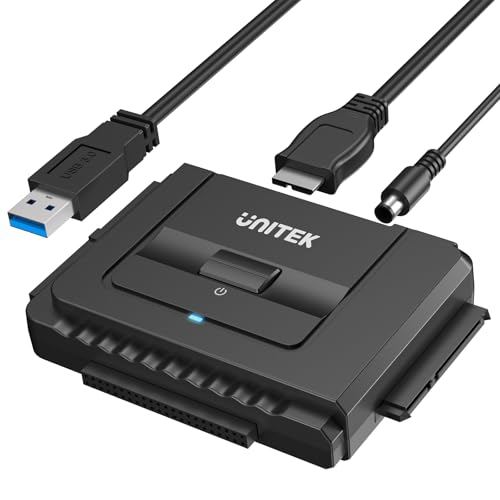
The Unitek converter supports both 2.5″/3.5″ SATA HDDs and SSDs, plus IDE drives, offering two-drive capability (one IDE and one SATA) for simultaneous access. It delivers up to 6 Gbps via SATA III and includes a 12V/2A power adapter for stable operation, particularly when reading multiple drives. Best for technicians who need to clone or back up two drives in one session. Limitation: heavy-duty drives or high-capacity enterprise models may require additional power or different interfaces.
Best Dock-Style Access for Everyday Use
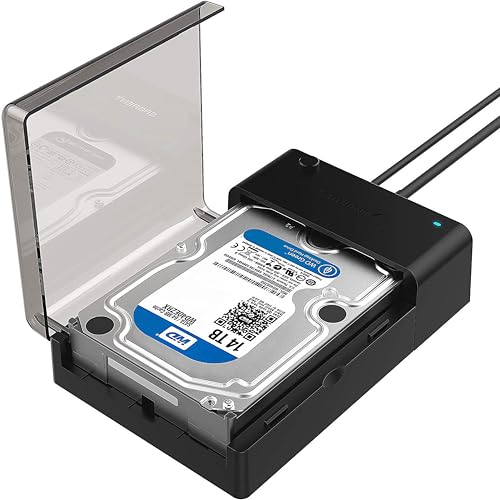
The SABRENT dock provides a straightforward docking station that accepts most 2.5″ and 3.5″ SATA drives with UASP support for faster data transfer. It is best for users who want a simple, plug-and-play experience without extra enclosure or cable management. Caution: some non-standard or enterprise drives may not be compatible with every docking station model.
Best Universal Adapter For Large Backups

The YINNCEEN kit offers a universal hard drive adapter that works with 2.5″/3.5″ IDE and SATA drives, including backup and transfer duties. It supports USB 3.0 speeds up to 5 Gbps and is backward compatible with USB 2.0/1.1. It is well suited for data transfer tasks, drive imaging, and quick recoveries on a desktop or laptop. Caution: real-world speeds vary with drive health and host system performance.
Best All-In-One Performance With Broad Drive Support

The FIDECO adapter supports both 2.5″/3.5″ SATA HDD/SSD and IDE drives, with USB 3.0 and a power adapter for reliable operation. It enables multiple-drive connections and can handle higher-capacity drives up to around 22 TB in theory. Best for users who perform large backups or frequent data recoveries across different drive types. Caution: using multiple drives simultaneously may require adequate power and a capable computer host for peak performance.
Buying Guide
What drive types do you need to access?
Consider whether you only need SATA drives, or also IDE drives (older HDDs). If you have a mix of 2.5″ and 3.5″ drives, look for universal adapters or docks with both 2.5″ and 3.5″ support and a robust power supply.
Do you require USB-C or USB-A compatibility?
USB-C support is convenient for newer laptops, while USB-A remains common on older machines. Many adapters support both via built-in or included cables, but verify compatibility with your host device.
What about power and stability?
For 3.5″ drives, a reliable 12V power supply is often essential. If you plan to run multiple drives, ensure the adapter or dock includes a sufficient power adapter and stable electronics to prevent read errors during recovery tasks.
Do you need speed or multi-drive access?
Upgrade to USB 3.0 (or USB 3.1/3.2) with SATA III support for faster data transfer. If you need to access two drives at once, seek dual-drive docks or kits designed for parallel operations, and confirm host system support for simultaneous transfers.
What is your target recovery scenario?
For quick file retrieval, a simple dock or adapter suffices. For cloning or imaging, prefer devices with reliable electrical stability and clear data paths to minimize corruption risk during transfers.
What about compatibility with operating systems?
Most modern adapters work with Windows, macOS, and Linux. Check the product features for explicit OS compatibility if you plan to run software-based recovery tools on a specific platform.
Summary of key considerations
- Drive type support: SATA, IDE, 2.5″, 3.5″
- Connection speed: USB 3.0 or higher; UASP support
- Power requirements: included 12V adapter for larger drives
- Number of drives: single vs. dual drive access
- Physical design: portable vs. dock-style for frequent travel
FAQ
- Q: Will these adapters recover data from a failing hard drive?
- A: They provide access to the drive contents for copying or imaging, which is a common first step in recovery. If the drive has mechanical failures, professional data recovery services may be required.
- Q: Can I use these with a laptop and a desktop interchangeably?
- A: Yes, most are designed for use with both laptops and desktops via USB connections, though desktop systems may benefit from longer operation stability with powered docks.
- Q: Do I need drivers to use these adapters?
- A: In most cases, these are plug-and-play and rely on the operating system’s native drivers. Some older systems may require minimal driver updates.
- Q: Can I clone a drive directly with these tools?
- A: Some kits support cloning or imaging workflows, but verify the product features and compatibility with your cloning software before buying.
- Q: Are there any safety precautions?
- A: Power off devices before connecting, handle drives carefully to avoid static damage, and use a non-conductive surface to prevent short circuits.