Whether you’re working from a dorm, home office, or a flexible coworking space, a reliable laptop dock can streamline connectivity. The list below highlights five versatile docks that expand ports, deliver power, and support multiple displays for a range of brands including MacBook, Dell, HP, Lenovo, and more. Each option is designed for plug-and-play use, helping you declutter your desk and boost productivity.
Summary of chosen products
| Product | Brand | Key Features | Amazon Link |
|---|---|---|---|
| Mukiya USB C Docking Station Stand | Mukiya | 4K HDMI, 2 USB 3.0, PD 100W, SD/TF, USB-C data | Link in product section |
| HP USB-C Dock G5 | HP | 10-in-1, single-cable, connects up to three displays | Link in product section |
| OMOTON Vertical Laptop Stand | OMOTON | Double laptop docking, adjustable width, protective mats | Link in product section |
| MOKiN Docking Station | MOKiN | 13-in-1, 2x HDMI, 10Gbps ports, 160W output | Link in product section |
| Acer USB C Docking Station | Acer | 9-in-1, dual 4K60, SD/MicroSD, 100W PD | Link in product section |
Mukiya 8-in-1 USB C Docking Station Stand

The Mukiya docking stand combines a laptop stand with a full 8-port hub. It supports laptops from 10 to 17 inches and includes a 4K HDMI output, 2 USB 3.0 ports, a USB-C PD 100W port, a USB-C data port, SD and TF card slots. Aimed at MacBook Pro/Air and Windows laptops, it delivers a compact, portable solution with plug-and-play setup.
HP USB-C Dock G5-11-in-1 Adapter
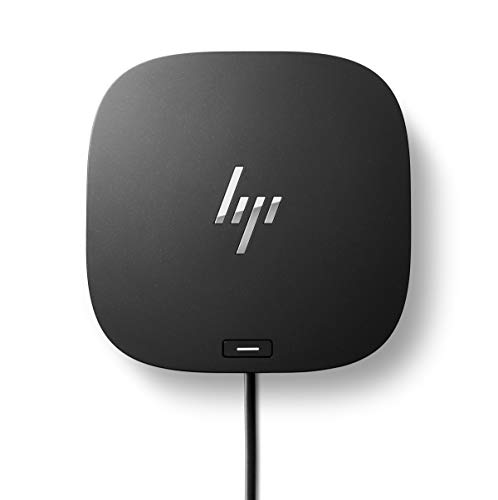
The HP USB-C Dock G5 emphasizes universal compatibility with USB-C and Thunderbolt-enabled laptops, including non-HP brands. It aims to reduce desk clutter by supporting multiple devices and displays from a single USB-C connection, making it a versatile choice for mixed ecosystems.
OMOTON Vertical Laptop Stand (Updated Double Version)

The OMOTON stand features a double-dock design, enabling two laptops to be housed simultaneously. Its adjustable width accommodates various notebook sizes, and protective silicone mats help prevent scratches while providing stability for ergonomic setups.
MOKiN Docking Station 13-in-1
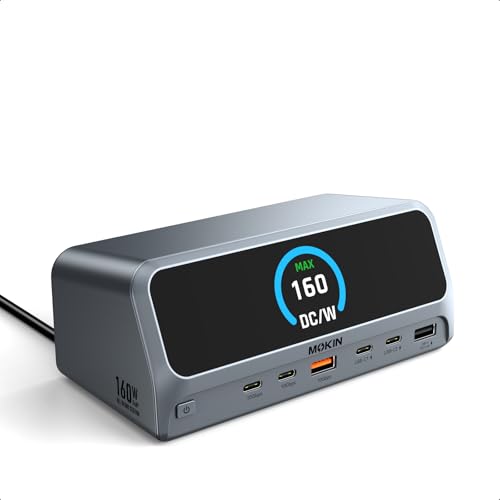
The MOKiN dock provides a robust 13-in-1 feature set, including two HDMI outputs, 10Gbps USB-C and USB-A ports, Gigabit Ethernet, a 160W max power output, and a dual-monitor setup. It supports Windows dual displays and offers high-speed data transfer, with notes on macOS external monitor limitations.
Acer USB C Docking Station Dual Monitor

The Acer 9-in-1 dock supports dual 4K displays via HDMI, plus USB-A/C, SD/MicroSD, and 100W PD. It’s designed for users needing reliable dual-monitor workflows with fast data transfers and easy setup, compatible with a wide range of laptops including Acer, Dell, HP, and Mac systems with compatible DisplayPort Alt Mode.
VVB USB C Docking Station 14-in-1

The VVB 14-in-1 hub expands a single USB-C port into an extensive array of connectivity, including dual HDMI/DP, 10Gbps USB-C/USB-A ports, Ethernet, SD/TF readers, and more. It supports Windows for dual or triple monitor setups and aims to deliver fast file transfers and broad peripheral compatibility, with macOS Macs often limited to mirroring rather than extended displays in some configurations.
Buying Guide: Key Purchase Considerations
- Display capabilities: If dual or triple monitors are required, verify HDMI/DisplayPort outputs and the supported resolutions (4K@60Hz is ideal for clarity). Note that macOS displays may have limitations on external monitors depending on the model.
- Power delivery: Ensure the dock provides sufficient PD (Power Delivery) to charge your laptop at full speed while connected to peripherals. Look for 60W, 85W, or 100W PD depending on your device’s needs.
- Port variety and throughput: Consider a dock with a balanced mix of USB-A and USB-C ports, Ethernet, SD/MicroSD card slots, audio, and video outputs. Data transfer speeds (5Gbps, 10Gbps) matter for large file transfers.
- Compatibility and ecosystem: Some docks work best with Windows or macOS; others specify universal compatibility. Check your laptop’s USB-C port capabilities (DisplayPort Alt Mode) to confirm video output support.
- Form factor and build: If you travel or work across locations, a lightweight, foldable or vertical stand with stable bases helps with portability and desk space.
- Driver and setup considerations: Most docks are plug-and-play, but some features (like dual-monitor support on macOS or certain displays) may require manual configuration or limited functionality.
- Price-to-feature balance: Evaluate which ports you actually use (HDMI, USB-C, SD cards) and choose a dock that prioritizes those, rather than buying a model with excess ports you’ll never use.
When selecting a dock, align your choice with your primary usage: daily office work, content creation, attendance at remote meetings, or a mix of tasks. For multimedia and multi-monitor setups, prioritize models with reliable HDMI/DisplayPort outputs, robust PD support, and high data-transfer speeds. For MacBook users, confirm DisplayPort Alt Mode support and any macOS-specific limitations before purchasing.