Preparing a productive workspace often means having a reliable docking station that can handle two laptops, multiple displays, and fast data transfer. The following selections are five well-rounded options that support dual-monitor setups, USB-C power delivery, and plenty of ports to keep both devices connected. Each product below includes its standout features to help you compare at a glance.
Summary Table
| Brand | |||
|---|---|---|---|
| Anker | 2 HDMI, 4K dual display, 85W PD, SD card reader | 2 HDMI, Ethernet, SD, USB-A | Link |
| Baseus | 4K@120Hz, dual HDMI, 1000Mbps LAN, 85W PD | 2 HDMI, USB, SD, Ethernet | Link |
| Selore&S-Global | Dual 4K HDMI, 100W PD, SD/TF, MST support (Windows) | 2 HDMI, USB-A/C, SD/TF | Link |
| Glomtheia | 2x HDMI 4K60, 100W PD, 3xUSB 3.0 | 2 HDMI, USB-C, USB-A | Link |
| Plugable | 2 HDMI outputs, Gigabit Ethernet, Audio, USB 3.0/2.0 | 2 HDMI, Gigabit Ethernet, USB | Link |
Note: All products support multiple display configurations, but macOS compatibility can vary between mirror and extend modes. Check compatibility for your specific laptop model and OS before purchasing.
Anker Dual-Display Docking Station With 8-In-1 Ports
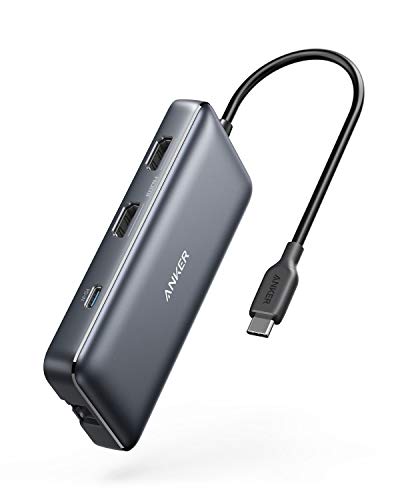
The Anker docking station combines dual 4K-capable HDMI outputs with a broad port selection, all accessible from a single USB-C connection. It includes a USB-C PD-IN charging port, plus two USB-A data ports, Ethernet, and a microSD/SD card reader. This configuration supports 4K@60Hz on one display and 4K@30Hz on both, enabling simple mirror setups for Mac users or extended displays on Windows laptops. Anker emphasizes broad compatibility across popular laptops and a compact form factor suitable for desks with two devices.
Baseus 9-in-1 Dock For 2 Monitors

This Baseus dock offers a high-refresh dual display experience with 4K support at 120Hz via HDMI, alongside a stable 1000Mbps Ethernet connection. The hub includes a PD charging port to maintain laptop power while the dock drives two monitors, limiting the need to swap chargers. It’s described as a balanced solution for home offices and classrooms where uptime and speed are critical, though it’s important to ensure the host device has a compatible USB-C port that supports full external display features.
Selore&S-Global Dual HDMI Docking Station

Selore’s 8-in-1 hub features dual HDMI outputs supporting 4K at 60Hz, a 100W PD charging port, and a full set of USB-A and USB-C ports with an SD/TF card reader. Note that macOS users may encounter mirror-only behavior on some setups due to native display management, while Windows systems often enjoy dual-monitor MST mode for extended displays. This dock emphasizes a blend of display versatility and data transfer speed in a compact package.
Glomtheia USB C Docking Station With Dual 4K
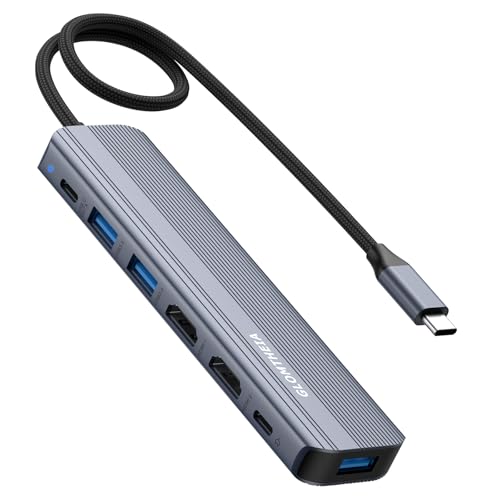
The Glomtheia hub centers on dual 4K@60Hz HDMI outputs, a robust 100W PD charging capability, and multiple USB ports, including USB-C data. It targets users who need serious multitasking with two high-resolution displays while keeping a single-cable charging solution. Compatibility is strongest with laptops that support full USB-C display output and PD charging in tandem with active data transfers.
Plugable Docking Station With Dual HDMI And Ethernet

Plugable’s station is designed for broad compatibility across Windows, Mac (with Driver), and ChromeOS. It offers two HDMI outputs, wired Gigabit Ethernet, a 3.5mm audio jack, and multiple USB ports, making it a flexible choice for users who require straightforward plug-and-play functionality. While it doesn’t charge the computer itself, it can support dual-monitor setups and high-speed data transfer through its USB connections, which is useful for shared workstations or classrooms.
Buying Guide: Key Purchase Considerations
- Display capabilities: For two laptops, confirm whether the dock supports dual-monitor extensions or only mirroring on macOS. Some devices deliver 4K@60Hz on both displays, while others offer mirrored output at higher stability on certain OSes.
- Power delivery: Look for a dock with a high-wower PD port (ideally 85W-100W) to keep laptops charged while using multiple ports. Confirm the dock’s own power consumption and the charger’s compatibility with your laptop’s power needs.
- Port variety and requirements: Evaluate USB-A, USB-C, SD/TF card readers, Ethernet, and audio jacks. Choose a hub that aligns with your peripherals, such as external storage, headsets, and SD card workflows.
- Host compatibility: Some docks require specific USB-C standards (DP Alt Mode, USB-C PD, or Thunderbolt) and may need drivers on macOS or ChromeOS. Ensure your laptops’ ports and OS are supported.
- Docking mode behavior: Note differences between MST (multiple stream transport) compatibility and mirror modes. Windows devices generally support MST for extended displays; macOS often mirrors unless using compatible hardware and software.
- Build and heat: Check for a robust build with good heat dissipation, especially if the dock drives two 4K displays or handles sustained data transfer.
- Driver and software needs: Some docks require installation of drivers or software on specific OS versions. Factor in potential setup steps to avoid downtime.
These considerations help compare how each option handles two laptops, display quality, charging, and data transfer. When selecting, balance display performance with power needs and the typical peripherals you connect daily. If you frequently switch between devices, prioritize a dock with broad OS compatibility and a straightforward setup process.